
How Muzeg Works
Visit the Official Application Page
Go to Muzeg's Become a Teacher page.
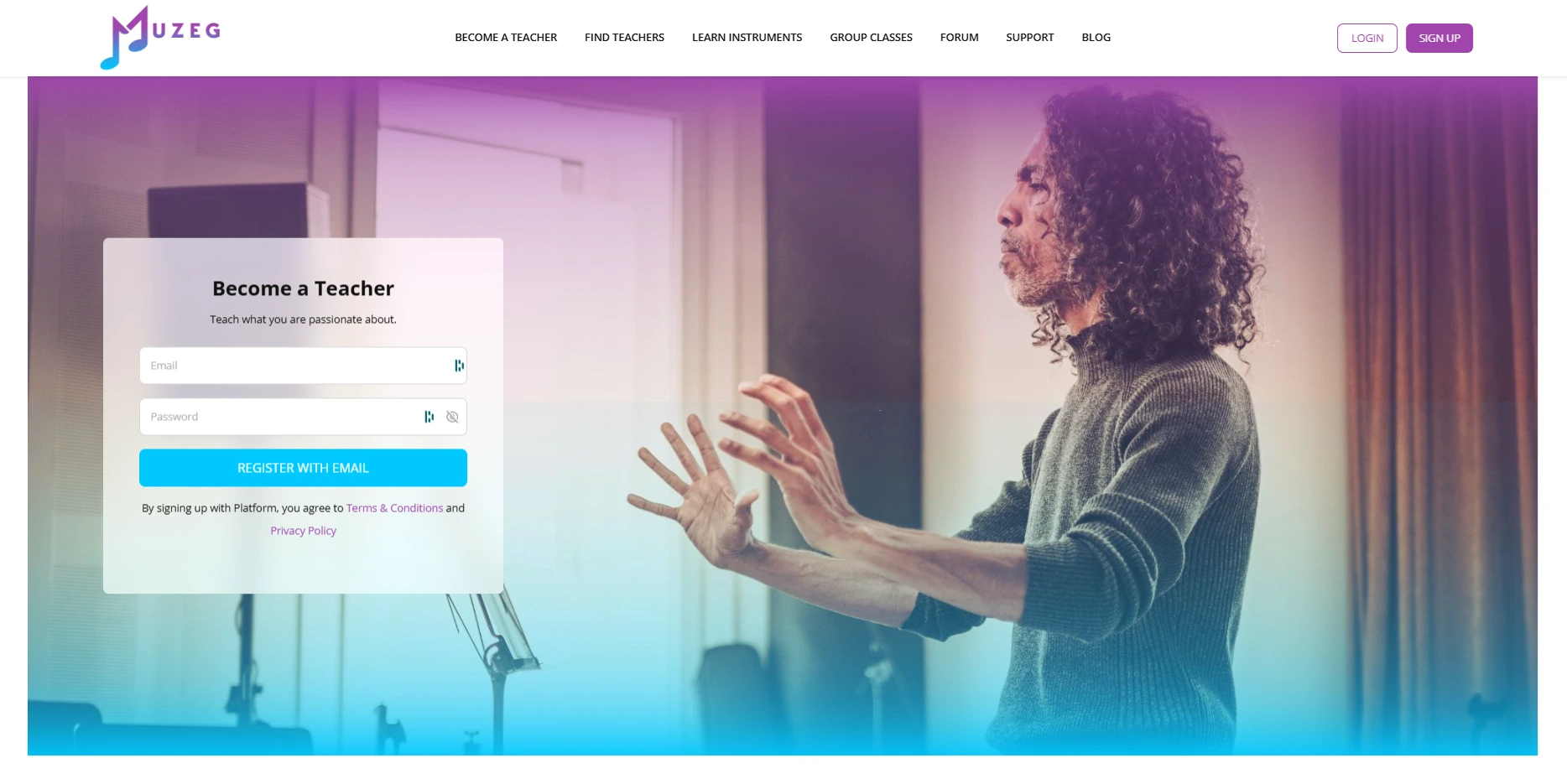
Step 1: Sign Up and Create Your Profile
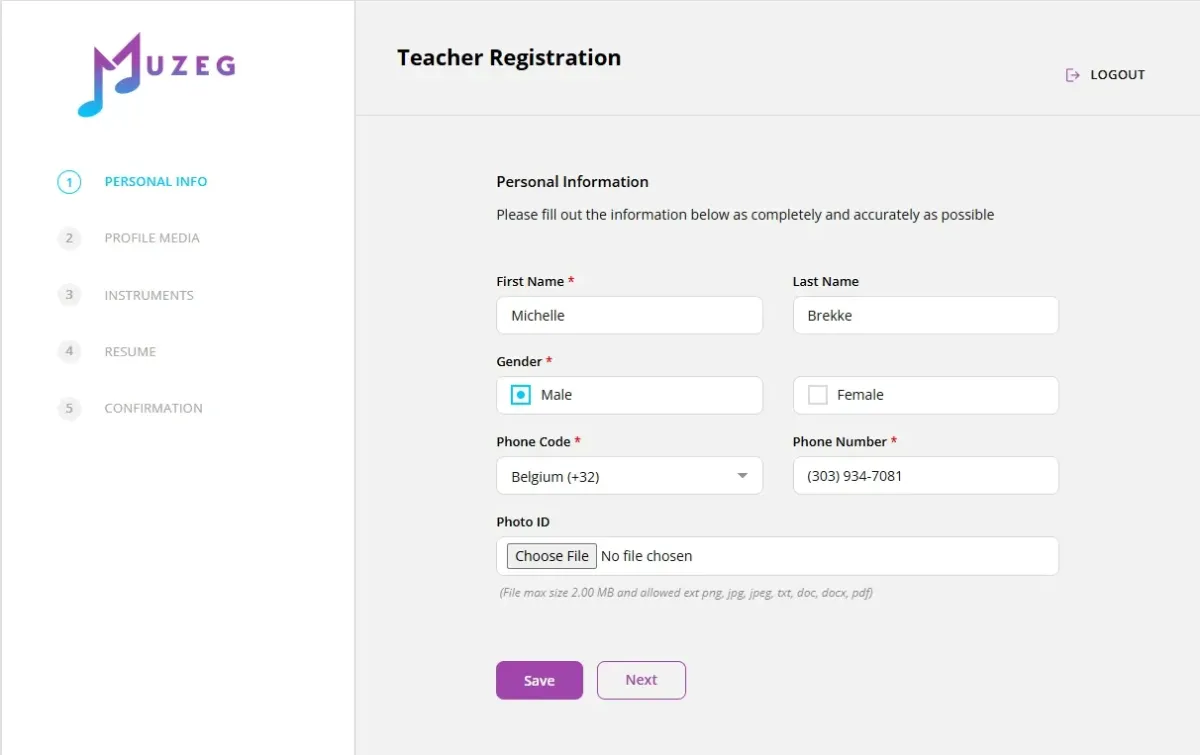
Fill Out Your Personal Information
Start by entering your full name and contact details, then upload a Photo ID for verification.
Photo ID upload requirements:
Maximum file size: 2.00 MB
Allowed file types: png, jpg, jpeg, txt, doc, docx, pdf
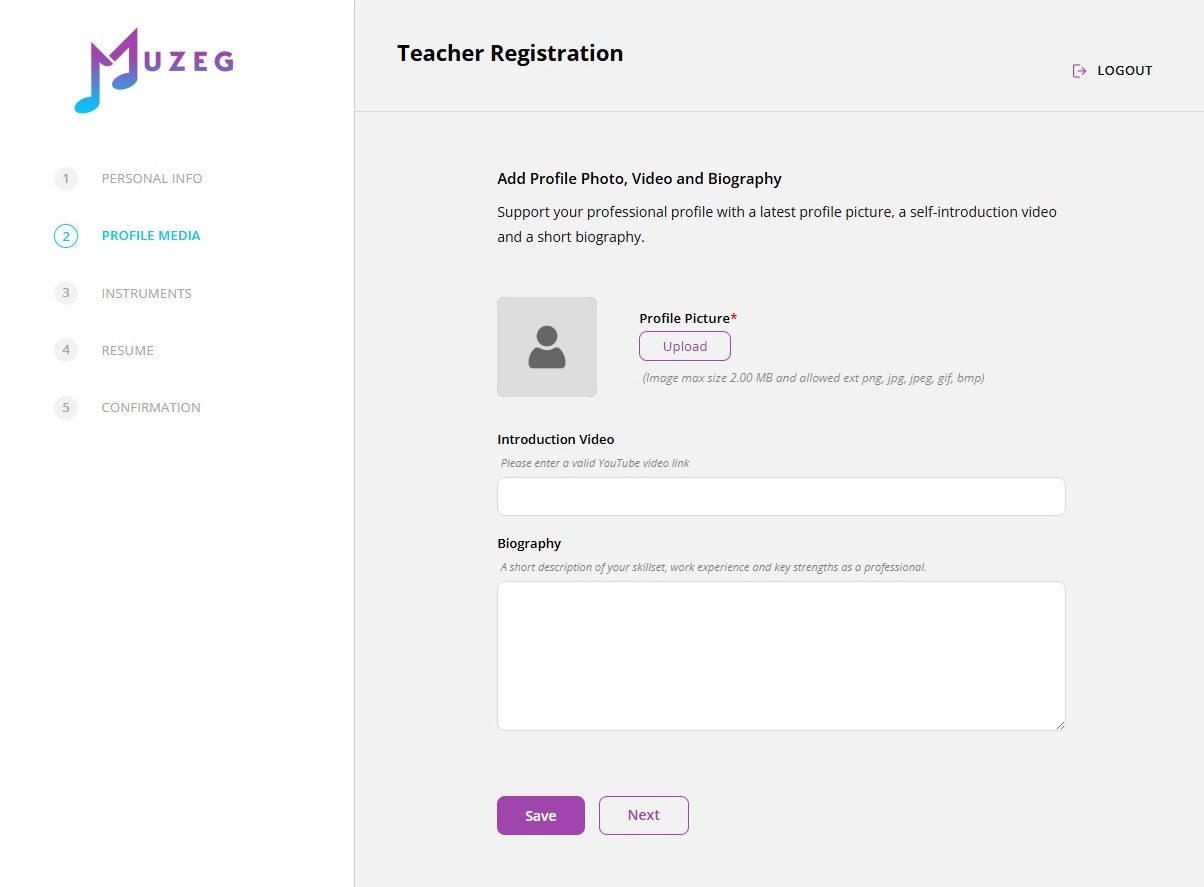
Upload Profile Media
Next, set up your profile so students can get to know you at a glance. Add a clear profile photo, an optional introduction video, and a short biography that highlights your background.
Profile Picture upload requirements:
Maximum file size: 2.00 MB
Allowed file types: png, jpg, jpeg, gif, bmp
Introduction Video:
Please enter a valid YouTube video link (optional, but strongly recommended).
Biography:
Write a short description of your skillset, work experience, and key strengths as a professional. Keep it clear and student-friendly so learners know what to expect from your lessons.
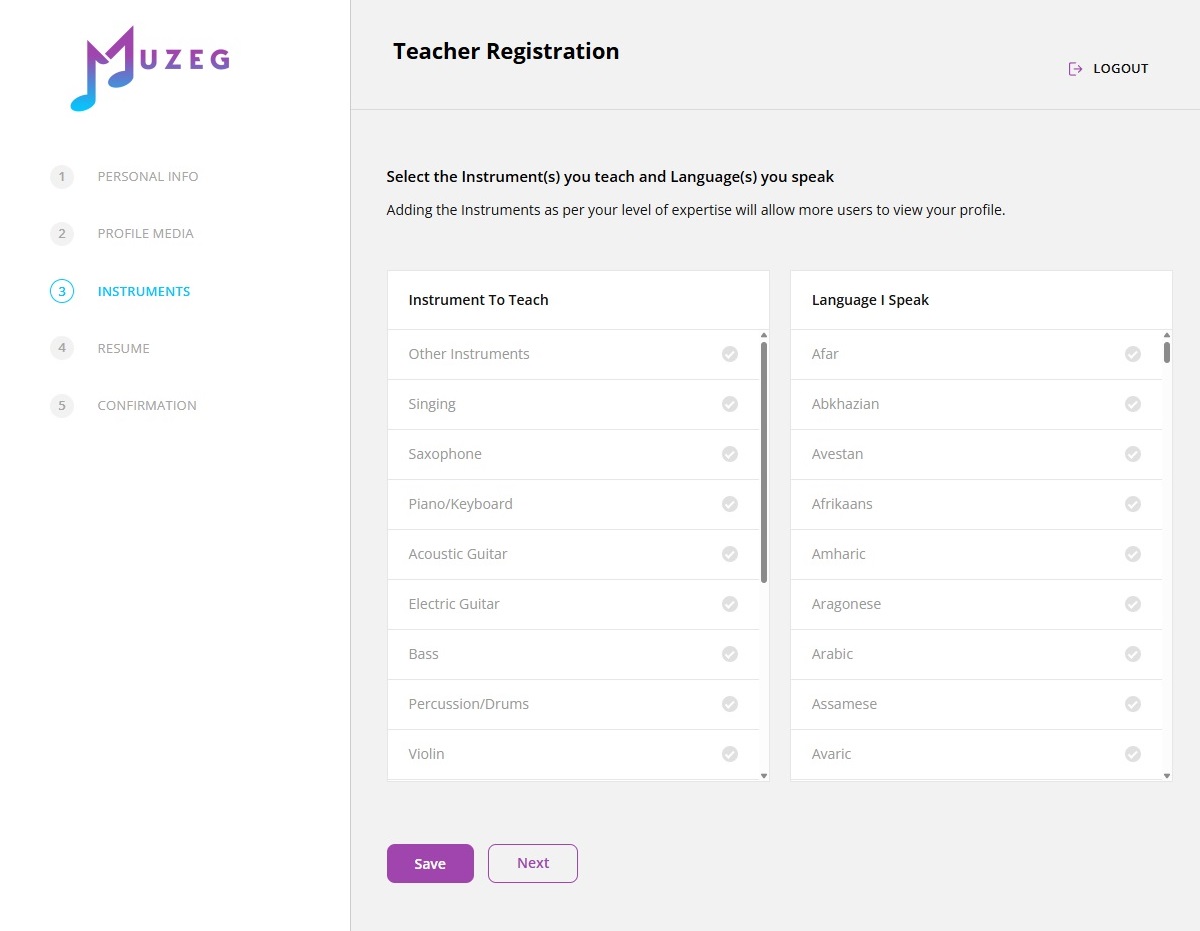
Specify Your Instrument Expertise
In this step, choose the instrument(s) you teach and the language(s) you speak. This helps Muzeg match you with the right students and makes your profile easier to find in search results.
Add instruments based on your level of expertise, since accurate selections improve your visibility and help more users discover your profile.
Submit Your Resume (Mandatory for Admin Verification)
In this step, you’ll add your resume and credentials for verification. This is mandatory so the admin can review your background and approve your teacher account.
How to add your resume and credentials:
Click Add Resume. Fill out Add Your Experience, including:
Experience Type, Title, Institution, Location, Description, Start Year and End Year
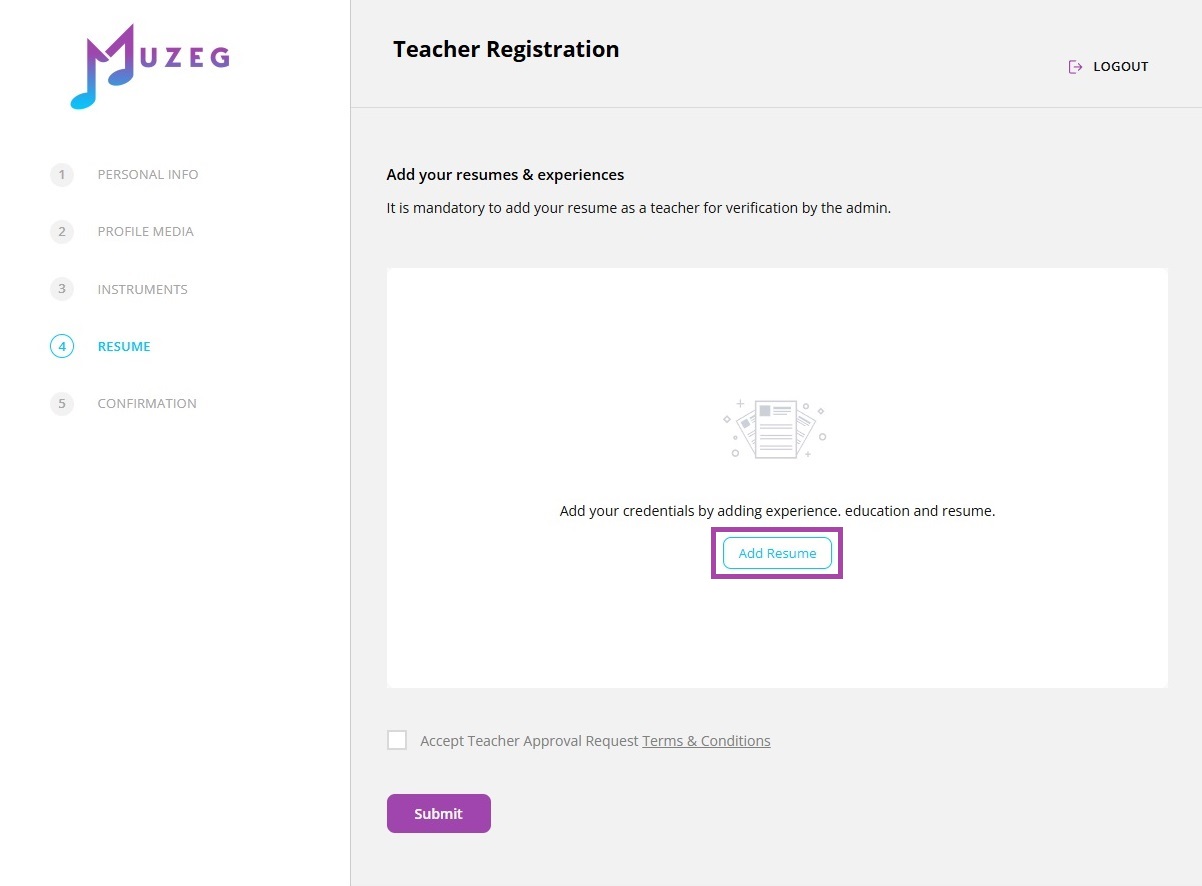
Provide Your Professional Background
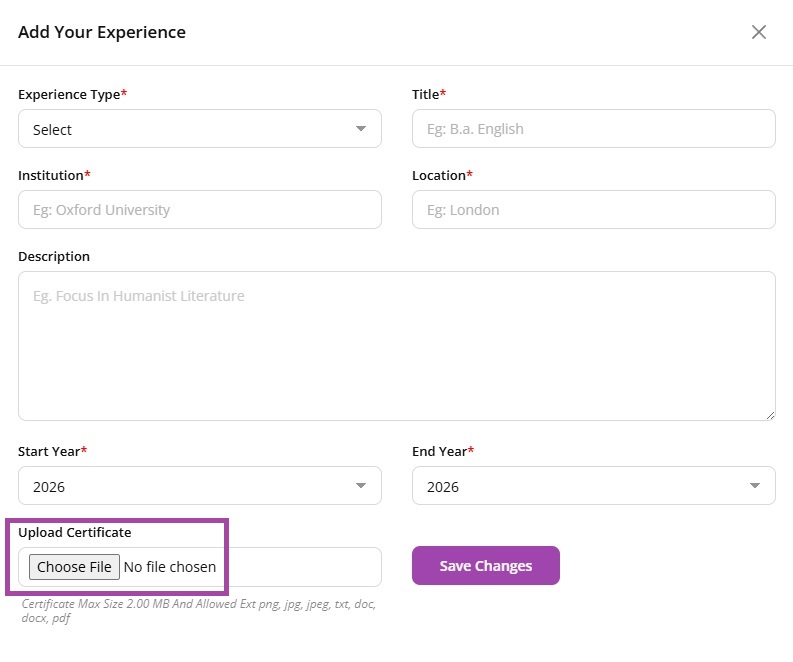
Upload your supporting document under Upload Certificate.
Certificate upload requirements: Maximum file size: 2.00 MB Allowed file types: png, jpg, jpeg, txt, doc, docx, pdf
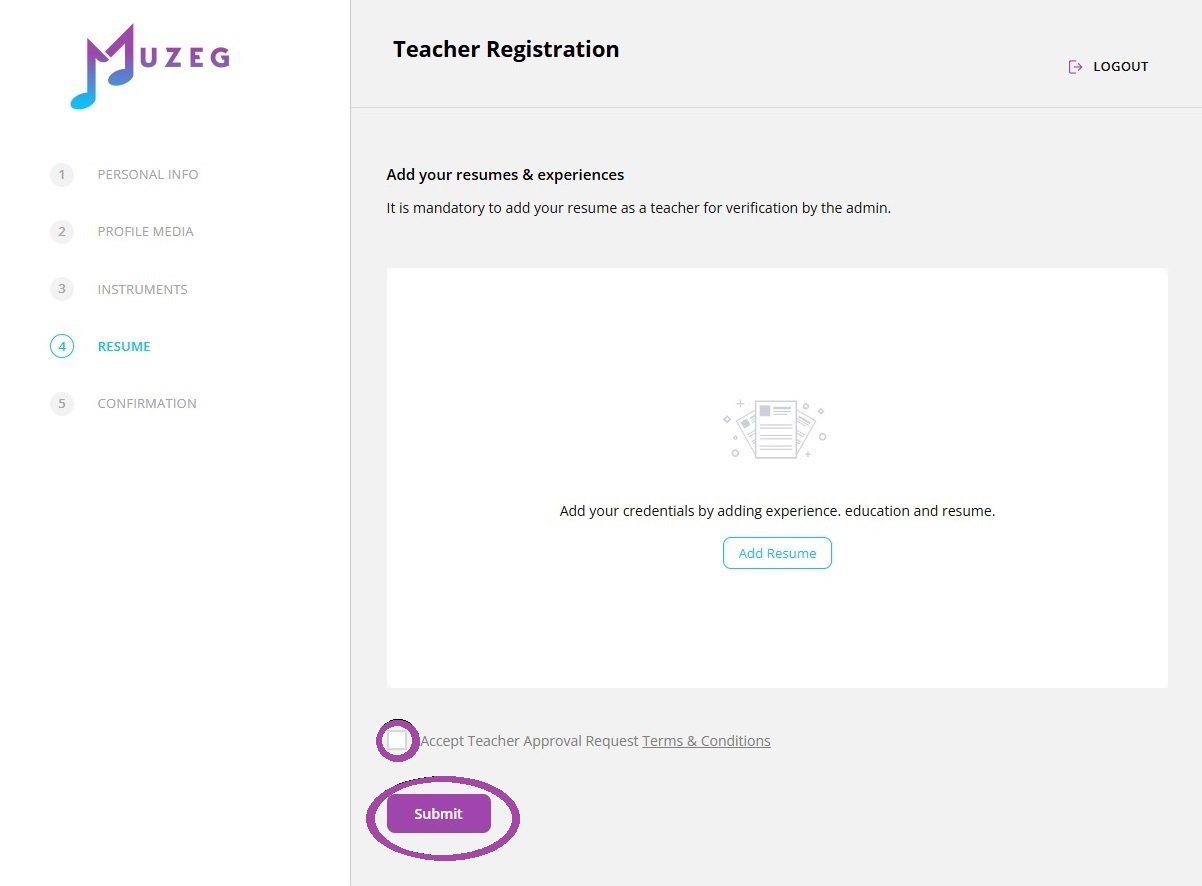
Submit Your Application
Once everything is complete, tick “Accept Teacher Approval Request”, then click Submit to send your registration for admin review.
Step 2: Set Your Availability and Pricing
Once approved, customize your teaching schedule and rates:
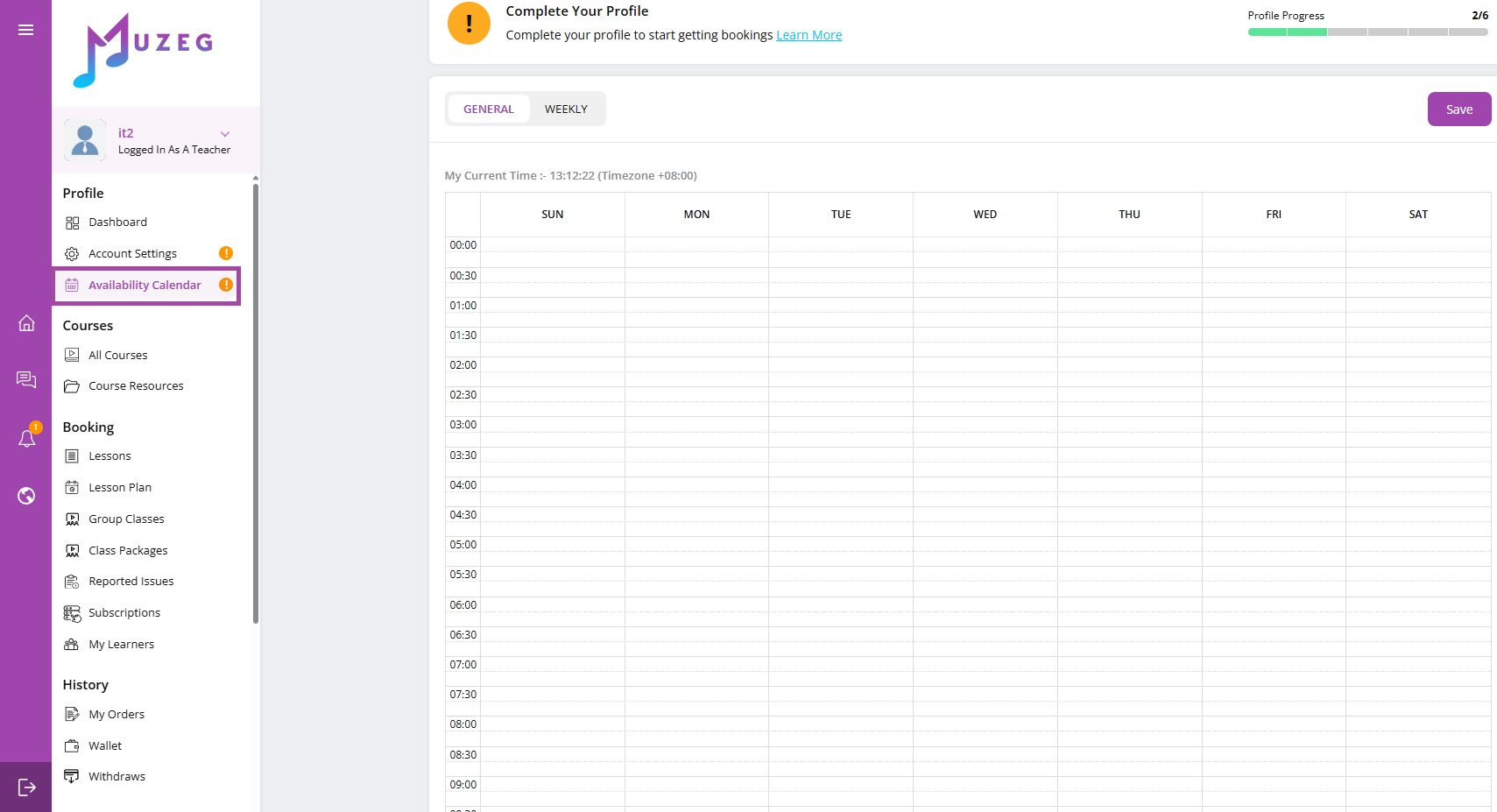
Manage Your Calendar
Set your available teaching hours to match your schedule.
Choose the days and times you can teach, then set your lesson pricing. Only these time slots will appear to students when they book, so keep this updated if your availability changes.
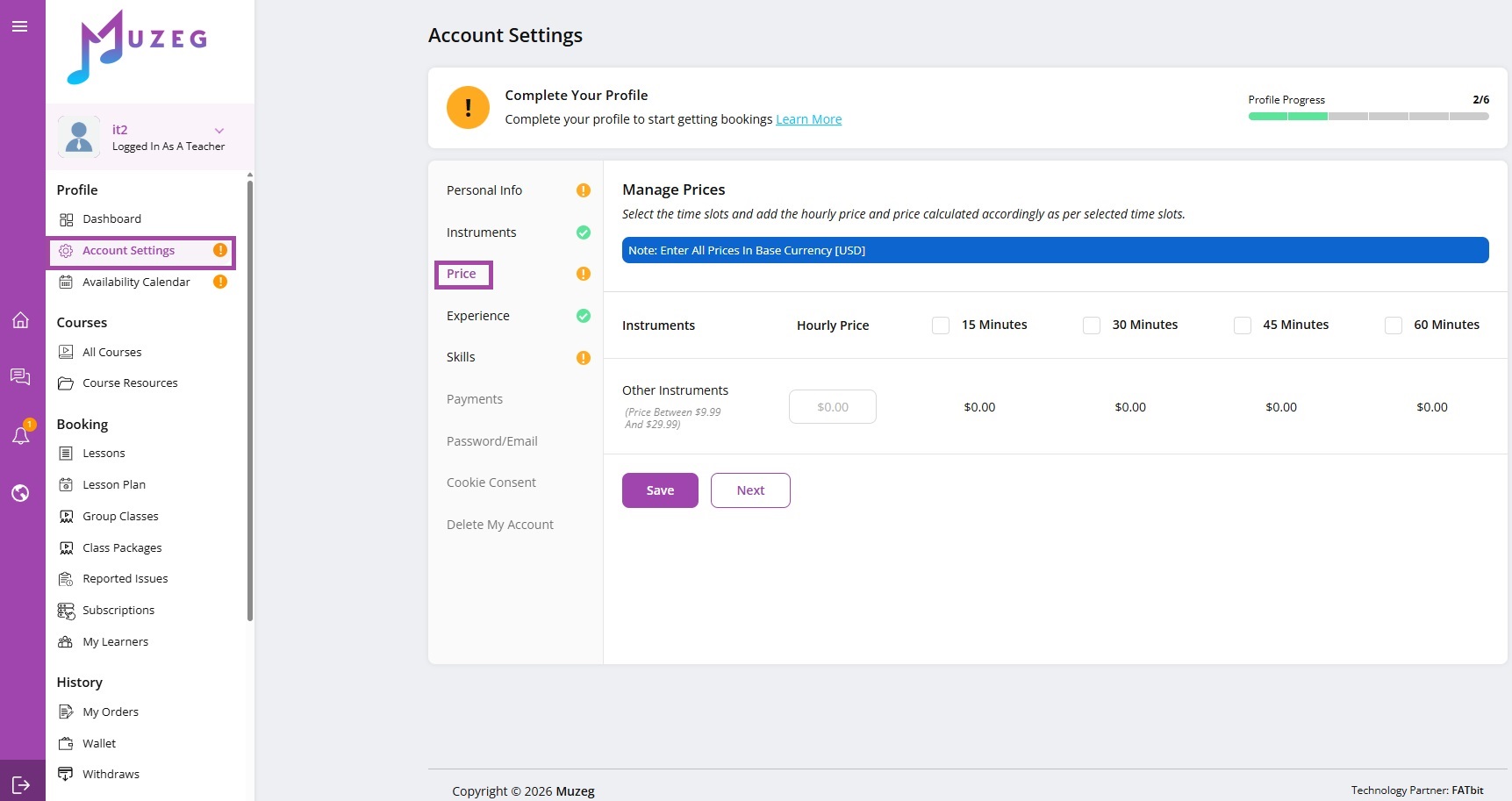
Set Your Prices
Choose your lesson rates based on your experience and expertise.
You can adjust your rates anytime as you grow, add new lesson types, or update your schedule.
Step 3: Start Teaching and Earning!
Now, you’re ready to begin your teaching journey:
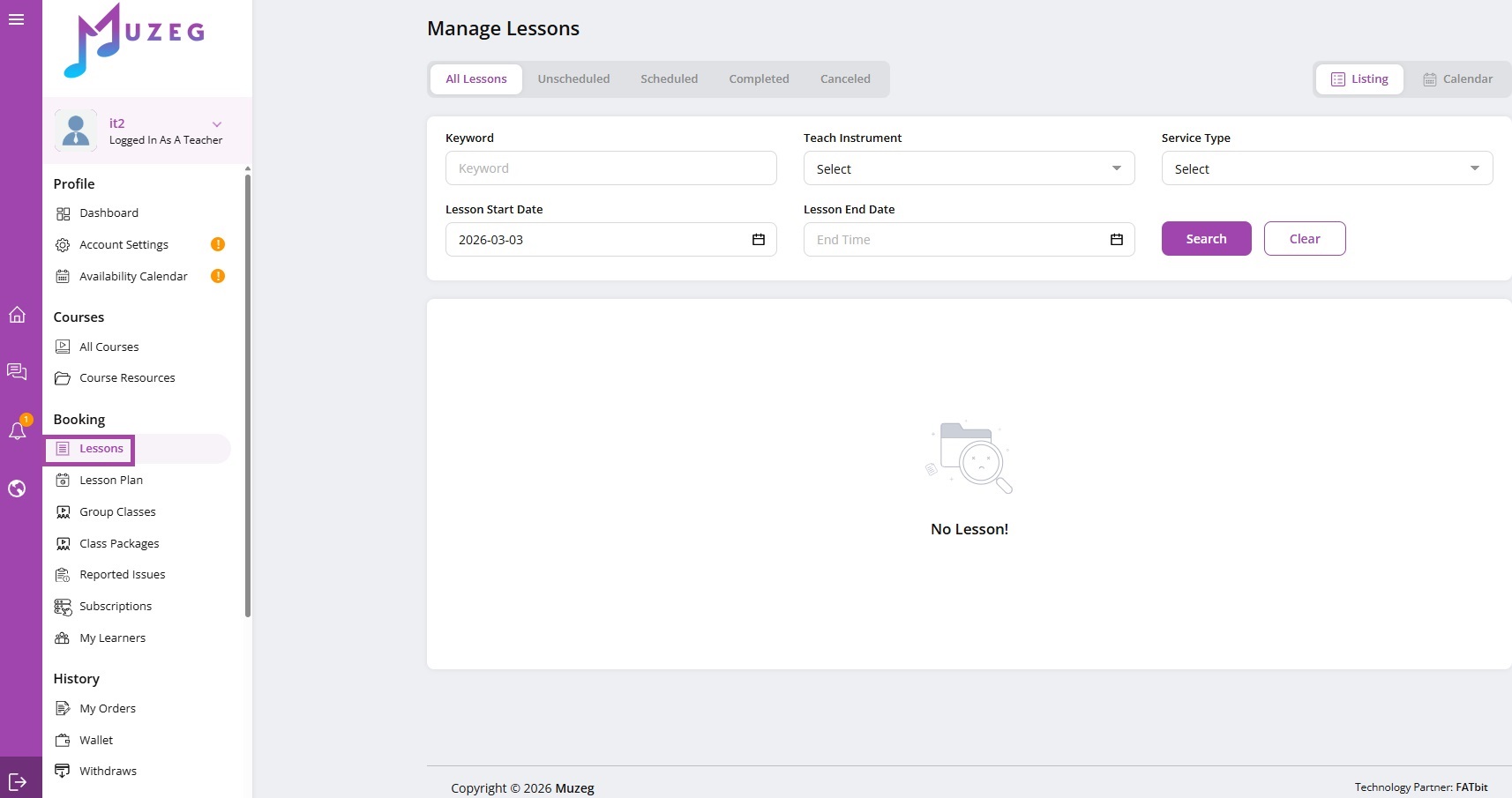
Manage Your Lessons
Accept student bookings and schedule your classes.
Teach and Inspire
Conduct lessons via Muzeg’s platform and help students grow in their musical skills.
Earn for Your Expertise
Get paid for your lessons and grow your teaching career with Muzeg™.
Still Have Questions? Contact Us to Learn More!
Or Book a call with one of our live agents.

CUSTOMER CARE
LEGAL
FOLLOW US


Copyright 2026. EduRoy Limited. All Rights Reserved.